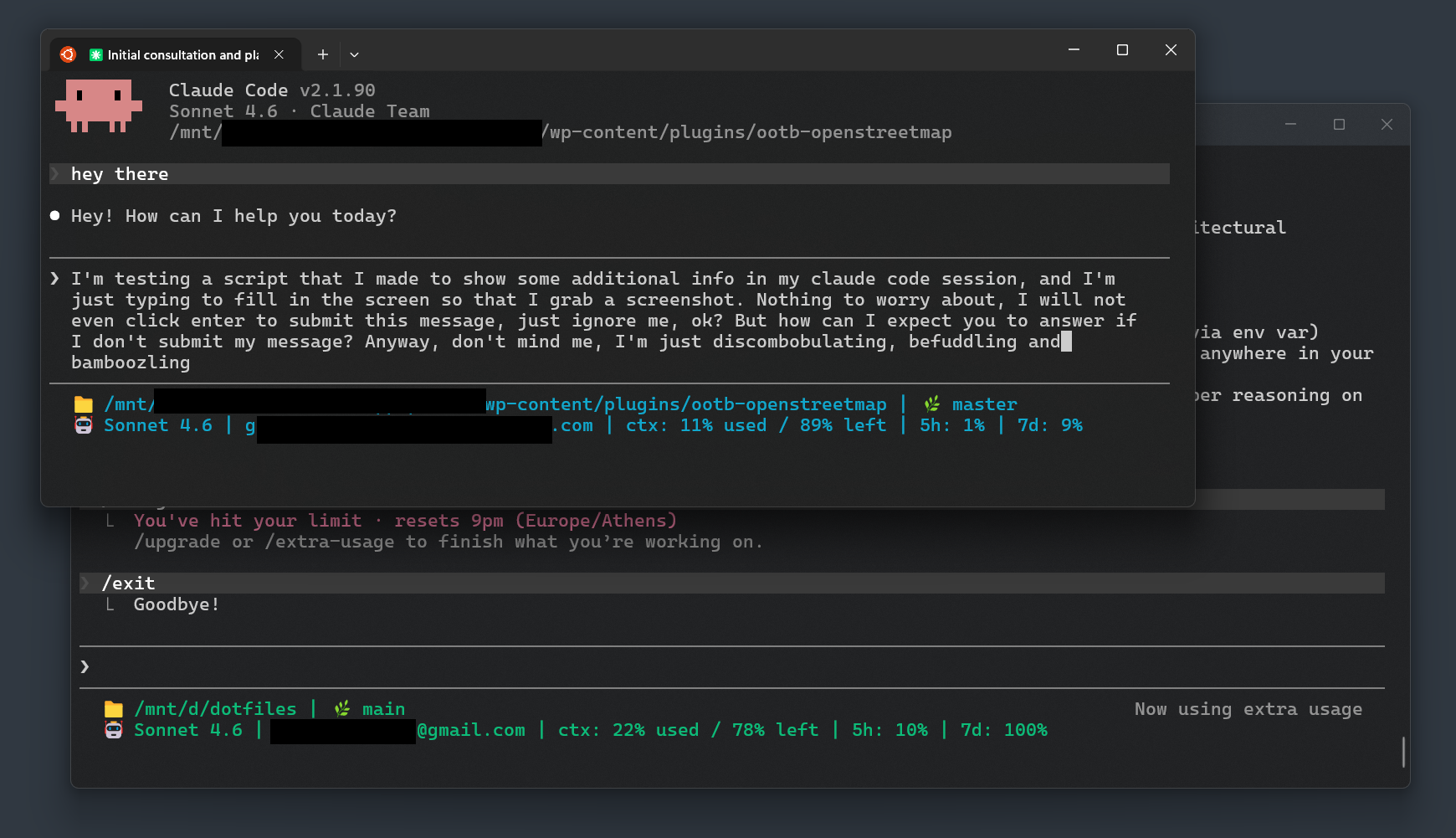
If you use Claude Code for both personal projects and work, you have probably already run into the problem: two accounts, one computer, and no obvious way to tell which one is active at any given moment. When I got a second Claude account for work, the first question I had was how to keep the two setups separate (their settings, their authentication, their token usage) without constantly second-guessing which one was actually running.
Burning personal tokens on a work task, or the other way around, is exactly the kind of invisible mistake you only notice when the bill arrives. It turns out Claude Code has a clean answer for this, and it is simpler than I expected.
How profiles work
Claude Code has a built-in concept of profiles. The default profile lives at ~/.claude/, as you would expect. Any additional profile follows the pattern ~/.claude-, so for a work profile, you would create ~/.claude-work/.
When you launch Claude Code with a specific profile, its settings.json takes precedence over the global one for any key it defines. Keys not present in the profile’s settings fall back to the global ~/.claude/settings.json. In practice, this means you only need to override what actually differs between accounts; everything else is inherited.
Creating a new profile is two steps:
mkdir -p ~/.claude-work
Then create a ~/.claude-work/settings.json with whatever you want to override. The minimum useful configuration is whatever differs between your accounts (the status line config, which I’ll get to in a moment).
To launch Claude Code using that profile, use the CLAUDE_CONFIG_DIR environmental variable:
CLAUDE_CONFIG_DIR=~/.claude-work claude
For convenience, you can set up a shell alias. For example, Add the following alias to ~/.bashrc (Linux/WSL2) or ~/.zshrc (macOS), then reload your shell:
alias claude-work='CLAUDE_CONFIG_DIR=~/.claude-work claude'
After that:
claude        # personal account (default ~/.claude/)
claude-work   # work account (~/.claude-work/)
That’s it. The profile flag tells Claude Code which settings directory to use, and which account to authenticate against.
The real problem: knowing where you are
The mechanical side is simple. The harder problem is cognitive: when you have two terminals open, or switch contexts mid-session, it’s easy to lose track of which account is active. Running something under the wrong account, or burning tokens from the wrong subscription, is the kind of mistake that is invisible until it isn’t.
What I wanted was a persistent, impossible-to-miss visual signal: something that would make the active account obvious without requiring me to think about it.
Claude Code supports a custom status line, which appears at the bottom of the interface and updates after each assistant message. You configure it in settings.json:
{
  "statusLine": {
    "type": "command",
    "command": "/path/to/your/script.sh"
  }
}
The script receives a JSON object on stdin (provided automatically by Claude Code) and prints whatever you want to stdout. That JSON object contains the current model name, the working directory, context window usage percentages, rate limit data, and more. You can use any combination of those to build whatever status display makes sense for you.
The script
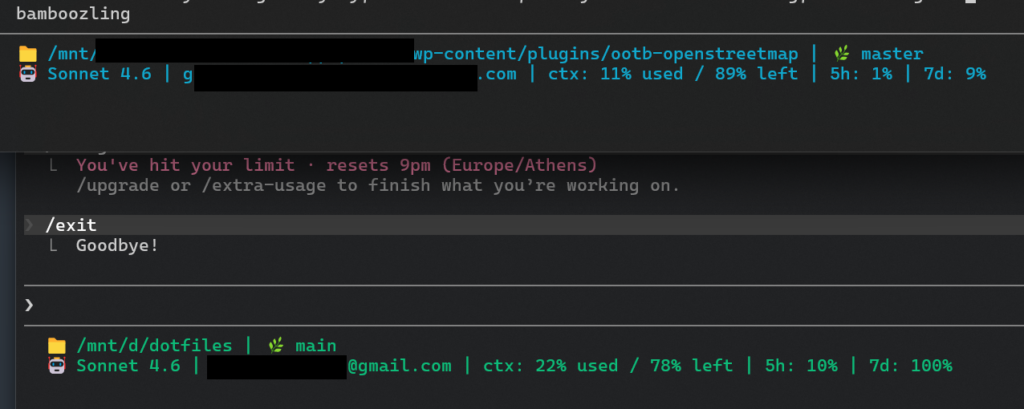
I (well… Claude, with my guidance) wrote a small bash script that extracts the relevant fields from that JSON, then prints a two-line status bar. The first line shows the current working directory and the active git branch, if there is one. The second line shows the active model, the logged-in account email, context window usage, and rate limit percentages.
#!/bin/bash
input=$(cat)
model=$(echo "$input" | jq -r '.model.display_name // "Unknown model"')
cwd=$(echo "$input" | jq -r '.workspace.current_dir // empty')
used=$(echo "$input" | jq -r '.context_window.used_percentage // empty')
remaining=$(echo "$input" | jq -r '.context_window.remaining_percentage // empty')
email=$(timeout 2s claude auth status 2>/dev/null | jq -r '.email // empty')
email=${email:-$(git config --global user.email 2>/dev/null || whoami)}

COLOR_OFFSET=4
colors=($'\033[31m' $'\033[32m' $'\033[33m' $'\033[34m' $'\033[35m' $'\033[36m')
color_index=$(printf '%s' "$email" | cksum | cut -d' ' -f1)
color_index=$(( (color_index + COLOR_OFFSET) % ${#colors[@]} ))
color="${colors[$color_index]}"
reset=$'\033[0m'
icon="🤖"

five_hour=$(echo "$input" | jq -r '.rate_limits.five_hour.used_percentage // empty')
seven_day=$(echo "$input" | jq -r '.rate_limits.seven_day.used_percentage // empty')

token_info=""
if [ -n "$used" ] && [ -n "$remaining" ]; then
    token_info=" | ctx: $(printf '%.0f' "$used")% used / $(printf '%.0f' "$remaining")% left"
elif [ -n "$used" ]; then
    token_info=" | ctx: $(printf '%.0f' "$used")% used"
fi

rate_info=""
if [ -n "$five_hour" ] && [ -n "$seven_day" ]; then
    rate_info=" | 5h: $(printf '%.0f' "$five_hour")% | 7d: $(printf '%.0f' "$seven_day")%"
elif [ -n "$five_hour" ]; then
    rate_info=" | 5h: $(printf '%.0f' "$five_hour")%"
elif [ -n "$seven_day" ]; then
    rate_info=" | 7d: $(printf '%.0f' "$seven_day")%"
fi

branch=$(git -C "$cwd" branch --show-current 2>/dev/null)
dir_line="${cwd}"
[ -n "$branch" ] && dir_line="${cwd} | 🌿 ${branch}"
echo -e "${color}📁 ${dir_line}${reset}"
echo -e "${color}${icon} ${model} | ${email}${token_info}${rate_info}${reset}"
The script requires jq, which you can install via brew install jq on macOS or sudo apt install jq on Debian/Ubuntu.
The color part, and why it matters
The account email is displayed in the status bar, which helps. But reading text requires attention, and attention is exactly what you don’t want to spend on infrastructure. So the script does something slightly more useful: it derives a color from the email address.
The mechanism is straightforward: it hashes the email with cksum, maps the result to one of six ANSI colors, and applies that color to the entire status line. The result is that each account gets a visually distinct color, consistently, without any manual configuration. Your personal account might always appear in cyan, your work account in magenta. The whole status line changes color, so you notice it peripherally even when you are focused on the conversation.
The only friction is that you do not control which color maps to which account. The assignment is deterministic (same email always produces the same color), but it is based on a hash, so you get what you get. If the defaults are not to your taste, or if two accounts happen to land on colors that are too similar, there is a COLOR_OFFSET variable near the top of the script (an integer from 0 to 5). Adjusting it shifts all color assignments at once. A few tries is usually enough to find a combination that feels clear.
Putting it together
Once you have the script saved somewhere stable (I keep mine in a dotfiles repo), the setup is just a matter of having both your global ~/.claude/settings.json and your work ~/.claude-work/settings.json (or any other profile that you might have, for what matters) pointing at the script:
{
  "statusLine": {
    "type": "command",
    "command": "bash /path/to/statusline-command.sh"
  }
}
The status line will automatically display the email for whichever account is authenticated in that session, in that account’s assigned color. No manual tagging, no separate scripts per account, no guessing.
One thing worth noting: if you define statusLine in both the global config and a profile’s config, you need to update both when changing the script path. The profile setting does not inherit from the global one for that key; it overrides it entirely. It is a small thing, but the kind of thing that is easy to forget when you are updating your setup months later.
Is it worth it?
Honestly, yes, even if you only switch accounts a few times a day. If you copy the script above as-is, the whole setup is a minute or two: save the file, point settings.json at it, done. The color signal in particular has been more useful than I expected; I have caught myself wondering if I was in the wrong account several times just because the color looked wrong before I even read the text.
And if you have a different approach to the multi-account problem, or if you’ve extended the status line in some way I haven’t thought of, I’d be glad to hear about it in the comments.